Connect your AI
Connect Claude to your search.
Claude's official directory listing is pending. The custom connector works today, and Claude Code supports the same browser sign-in through its remote MCP and plugin flows.
From the Claude directory — listing is pending #
Once Anthropic publishes SoloSearcher, find it in Claude's connector directory, choose Connect, then sign in and approve access. You will not need to paste a server URL.
In the app (claude.ai and desktop) #
Works in claude.ai and the Claude desktop app. Nothing to copy but the URL.
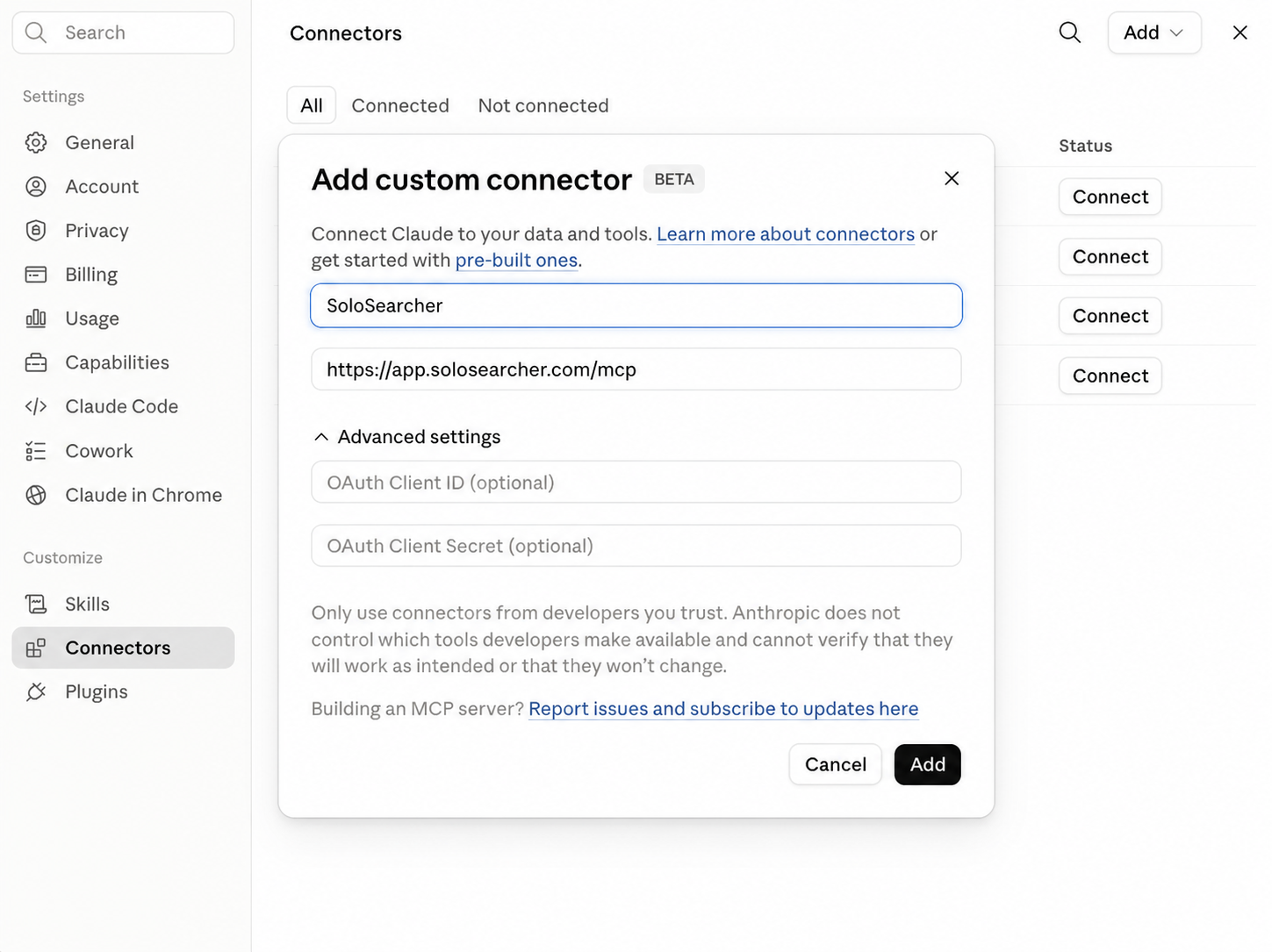
- In Claude, open Settings → Connectors → Add custom connector.
- Paste the SoloSearcher connection URL and continue.
https://app.solosearcher.com/mcp
- Your browser opens SoloSearcher. Sign in with your normal login.
- Choose what Claude is allowed to do — read-only or read-and-write — then approve.
Claude gets a private token tied to your account. You never handle it.
In Claude Code #
The official marketplace package will register SoloSearcher for you. Until that listing is live, add the same remote server once. Both paths finish with browser OAuth; you do not need a SoloSearcher scoped connection.
- After the marketplace listing is published, install the SoloSearcher plugin from Claude Code's Discover tab. Before then, register the remote server:
claude mcp add --transport http solosearcher https://app.solosearcher.com/mcp
- Start Claude Code, run
/mcp, select SoloSearcher, and choose Authenticate. - Complete SoloSearcher sign-in and consent in the browser, then ask Claude to list SoloSearcher tools to confirm the connection.
Any compatible client connects the same way: streamable HTTP plus a Bearer header. See Developer tools for the generic pattern.
Choose what Claude can do #
Every connection is scoped when you approve it. Read-only lets Claude search and read your companies, notes, contacts, and financials. Read-and-write also lets it save its work — finished reports, notes, and updates land on the company record instead of staying in the chat.
A read-only connection can still run any skill; it returns the analysis to you in the conversation rather than storing it. You can revoke access at any time, and every request is recorded in the product audit trail.
First thing to try #
One prerequisite: a Buyer Profile enriches the context available to skills — your display name plus at least one of your background, your thesis, or a target range. Two minutes, once. See Buyer Profile for how it shapes context and exactly how to set it. Skills are scored against your criteria, and missing profile fields remain explicit.
Then ask Claude for something you actually want to know:
Of the companies I'm tracking, which three best fit my buyer profile? Then run a pre-inspection decision brief on the strongest one.
With read-and-write access, the result of a skill run saves onto the company record as a report — run it again later and you get a new version next to the old one. On a read-only connection the analysis comes back in the conversation instead.
Troubleshooting #
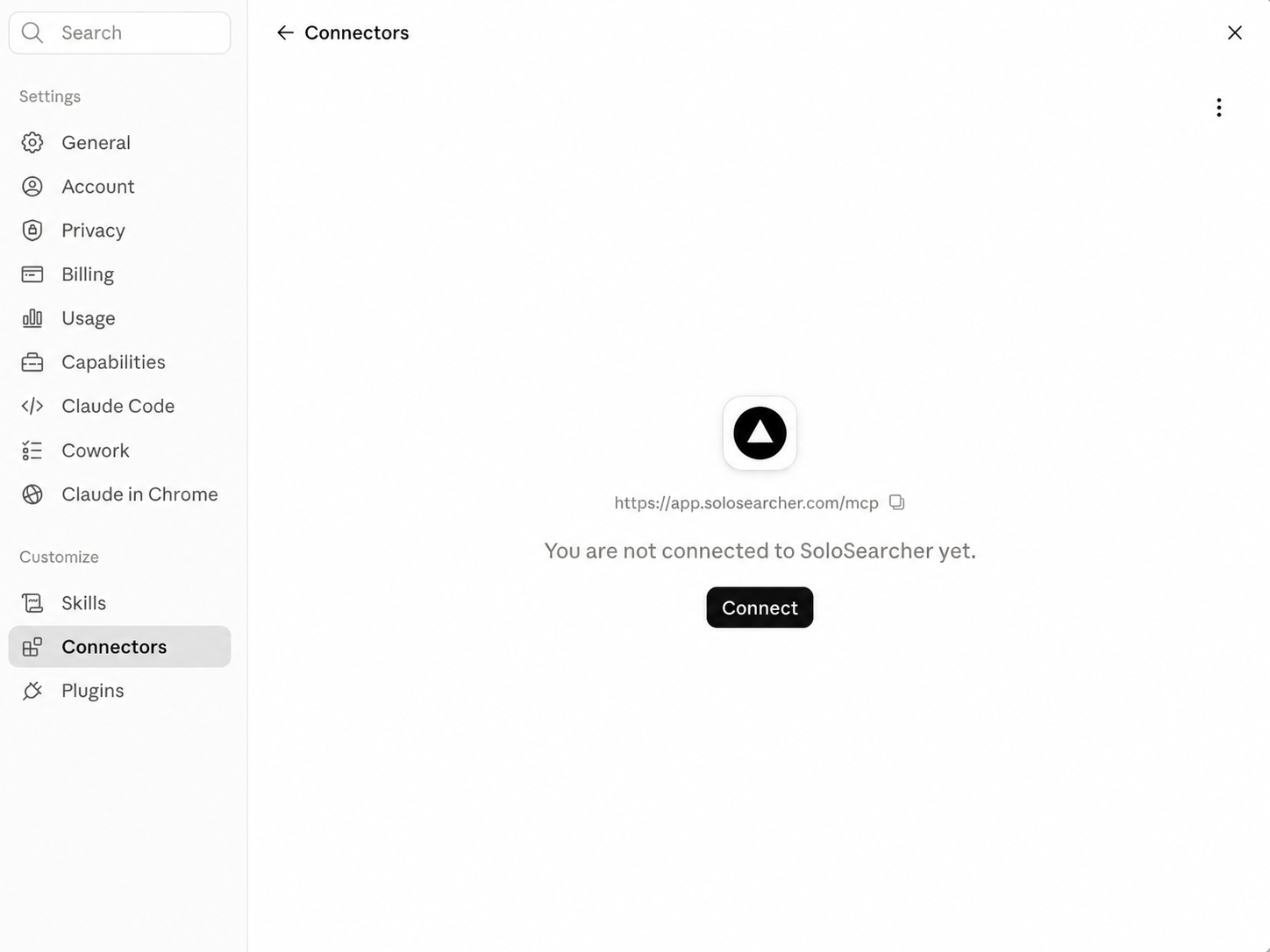
If the connector shows Not connected yet, the browser approval didn't finish — open the connector and sign in again. Approval is complete when SoloSearcher appears with its tools listed.
More symptoms: Troubleshooting.
Read more #
Signed in? The same steps live at Settings → Connections alongside your live connection status. See scoped connections & access for key mechanics, or head back to Connect your AI for the other tools.